How to Reset EPEVER MPPT Charge Controller: Step-by-Step Guide
If your solar battery is not charging, the display shows an error, or the charging current stays at zero, you may need to reset EPEVER MPPT charge controller settings or restart the unit. The correct procedure depends on the controller model, battery type, and fault condition.
A reset can clear some temporary faults, but it will not fix reversed polarity, low PV voltage, incorrect battery settings, or damaged wiring. Always identify the cause before restoring power.
How to Reset EPEVER MPPT Charge Controller: Methods
| Reset Method | When to Use It | Expected Result |
|---|---|---|
| Power-cycle reset | Controller is frozen or unresponsive | Restarts the controller |
| Factory reset | Incorrect settings or configuration changes | Restores defaults, if supported |
| Remote display reset | Display or communication issue | May restore the display or connection |
| Communication reset | MT50 or software connection fails | Re-establishes communication |
| Fault correction and restart | Charging stops because of a protection event | Allows normal charging after the fault clears |
Important: Not every EPEVER controller has a dedicated reset button or the same factory-reset menu. Check the manual for your exact model, such as the Tracer AN, XTRA, or Tracer BN series.
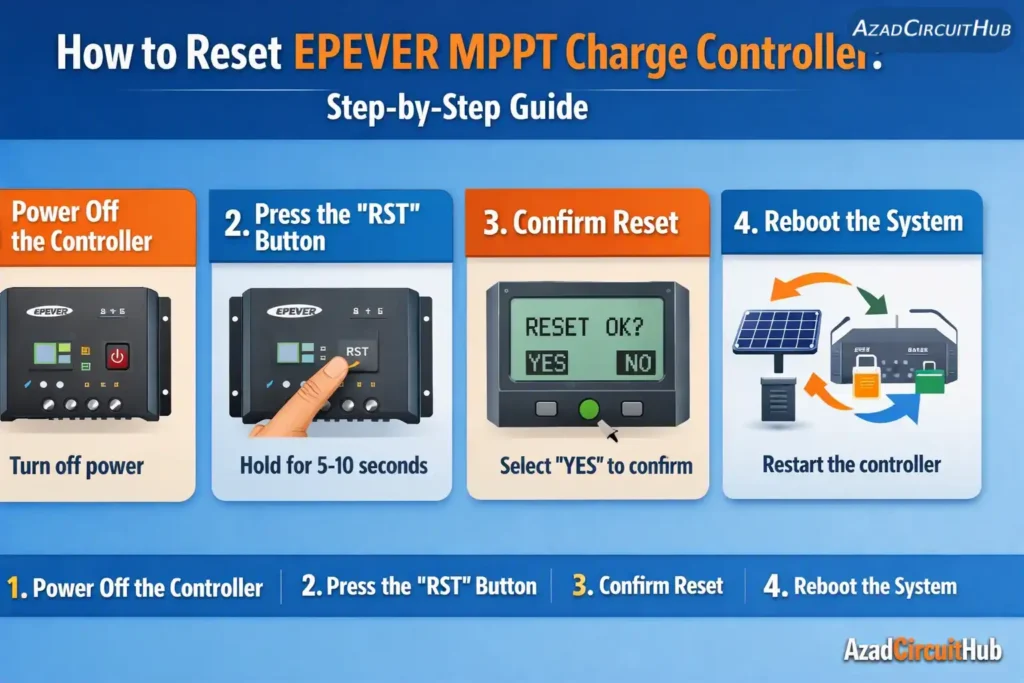
Table of Contents
Table of Contents
How to Reset EPEVER MPPT Charge Controller Safely
Step 1: Record the Existing Settings
Before changing anything, record the battery type, system voltage, charging voltage limits, load-control settings, and battery capacity settings if available.
If you use an MT50 remote meter or EPEVER monitoring software, save screenshots of the current configuration.
This matters because a factory reset may erase custom battery parameters. Incorrect charging settings can cause undercharging, overcharging, or battery damage.
Step 2: Check the Error Before Resetting
Inspect the controller display for an error code, battery-voltage warning, or charging-status indicator. Also check the PV voltage and battery voltage using a suitable digital multimeter.
| Observation | Possible Cause | First Action |
|---|---|---|
| PV voltage is zero | Disconnected panels, open isolator, or wiring fault | Check PV connections and isolator |
| Battery voltage is too low | Discharged battery or loose connection | Verify battery voltage and connections |
| PV voltage is below the required charging level | Insufficient solar voltage | Check panel configuration and sunlight |
| Controller shows overtemperature | Poor ventilation or high ambient temperature | Allow the unit to cool |
| Battery is full but charging current is low | Normal charge regulation | Check battery state of charge |
| Controller is frozen | Temporary firmware or communication issue | Try a controlled power cycle |
For reliable results, compare the measured values with the specifications in the manual for your exact EPEVER model.
Step 3: Perform a Power-Cycle Reset
A power cycle restarts the controller without necessarily erasing its settings.
- Switch off the connected DC load output, if your installation provides a separate load circuit.
- Disconnect or isolate the PV array using its correctly rated DC isolator.
- Disconnect the battery supply only after isolating the PV input and following the model’s shutdown instructions.
- Wait until the controller display goes dark and the unit has fully powered down.
- Inspect the terminals for loose connections, overheating, or corrosion without touching exposed live conductors.
- Reconnect the battery first, following the manufacturer’s specified startup procedure.
- Confirm that the controller recognizes the correct battery voltage.
- Reconnect the PV array and check whether charging resumes.
Never disconnect the battery while leaving the PV array connected unless the specific model manual explicitly permits it. Many EPEVER controllers require battery power to establish the system voltage and operate correctly.
Use a DC-rated isolator and follow the manufacturer’s instructions. Solar panels can remain electrically live in daylight even when the inverter is switched off.
How to Factory Reset EPEVER MPPT Settings
A factory reset is different from a power cycle. It restores supported settings to their default values, which may remove customized battery charging parameters.
Depending on the model, you may need the controller’s local display, an MT50 remote meter, or compatible monitoring software.
| Interface | Recommended Action |
|---|---|
| Controller display | Check the settings menu for a documented factory-reset option |
| MT50 remote meter | Consult the MT50 and controller manuals for supported reset functions |
| PC monitoring software | Check for a reset or restore-defaults command supported by the connected model |
| No reset option available | Consult the exact model manual or EPEVER technical support |
Do not assume that holding a button for several seconds will reset every EPEVER controller. Button combinations and menu functions vary between models.
After restoring defaults, verify the battery chemistry and charging limits before reconnecting the solar array. Lithium batteries may require specific voltage settings and communication support. Never assume the default profile is suitable for your battery.
Technical Checks After Resetting
Once you reset EPEVER MPPT charge controller operation, confirm that the system is working within its rated limits.
Check PV Voltage and Battery Charging
For a typical MPPT controller, the PV input voltage must be high enough above the battery voltage for charging to begin. The exact operating range and startup conditions depend on the model.
A simplified power relationship is:
P = V × I
Where:
- P = electrical power in watts (W)
- V = voltage in volts (V)
- I = current in amperes (A)
For example, if a solar array supplies 600 W and the controller delivers power to a 24 V battery, the ideal charging current is:
I = P / V = 600 / 24 = 25 A
Actual current will vary because of conversion losses, battery voltage, solar conditions, temperature, and charging limits.
If the controller remains in standby, measure PV voltage and battery voltage separately. Check polarity and ensure the array’s open-circuit voltage does not exceed the controller’s maximum PV input rating.
Confirm Battery Charging Parameters
| Parameter | What to Verify |
|---|---|
| Battery type | Correct chemistry and supported profile |
| Absorption or boost voltage | Matches battery manufacturer specifications |
| Float voltage | Appropriate for the battery type |
| Low-voltage disconnect | Suitable for the battery and connected loads |
| Temperature compensation | Appropriate for the battery chemistry |
| Maximum charging current | Within battery and controller limits |
For more help choosing compatible equipment, see our best mppt solar charge controller guide. If you’re comparing lower-cost options, our cheap mppt solar charge controller article can help you assess the important specifications.
Expert Field Tip: Avoid Repeated Resets
When troubleshooting solar charge controllers, I first separate wiring faults from configuration and communication problems. A restart may clear a temporary lockup, but repeated resets without checking PV voltage, battery polarity, and charging parameters can hide the real fault.
If the controller continues to trip, investigate the underlying cause before returning it to service.
When the Reset Does Not Work
If the controller still fails to charge, check the following:
- Measure the battery voltage directly at the controller terminals.
- Verify the PV array voltage and polarity with a suitable meter.
- Inspect DC breakers, fuses, isolators, and terminal connections.
- Check the controller’s temperature and ventilation.
- Review battery settings and active fault indicators.
- Confirm that the PV array is within the controller’s voltage and power limits.
- Inspect the MT50 cable or communications connection if the display is the only problem.
If the problem involves battery chemistry, charging profiles, or system compatibility, review our best mppt solar charge controller guide. You can also read victron vs renogy for a comparison of alternative solar charge controller brands and their features.
Do not open the controller enclosure or attempt internal repairs unless you are qualified and authorized to do so.
Frequently Asked Questions
1. Does resetting an EPEVER MPPT controller erase settings?
A power-cycle reset normally preserves configuration settings. A factory reset may erase customized battery parameters and other settings. Check your model manual before performing a factory reset.
2. Why is my EPEVER MPPT controller not charging after a reset?
Common causes include insufficient PV voltage, a discharged or disconnected battery, incorrect polarity, a blown fuse, an active protection condition, or incorrect battery settings. Measure the PV and battery voltages before replacing the controller.
3. Should I disconnect the solar panels or battery first?
Follow the shutdown sequence in the exact model manual. Many EPEVER controllers require the PV input to be isolated first and the battery disconnected afterward. During startup, the battery is commonly connected before the PV array.
4. How do I reset an EPEVER Tracer AN controller?
First try a controlled power cycle according to the Tracer AN manual. If you need to restore factory settings, use only a reset function documented for your exact model and firmware. Not all Tracer AN versions use identical menus or controls.
5. Can a reset fix an EPEVER MPPT communication error?
A restart may clear a temporary communication fault, but it will not repair a damaged MT50 cable, incorrect communication settings, incompatible software, or a faulty interface. Check the connections and compatibility before resetting again.
References
The safest reset procedure depends on the exact controller model. Use the official EPEVER user manual for your model to confirm shutdown and startup sequences, factory-reset functions, PV voltage limits, and battery charging parameters.
Technical references:
- EPEVER official website: https://www.epever.com/
- The user manual supplied with the specific Tracer AN, XTRA, or Tracer BN controller
- The battery manufacturer’s charging-voltage and current specifications
Always follow the controller manual and battery manufacturer’s limits. If a fault persists after the wiring and configuration checks, contact EPEVER technical support or a qualified solar technician rather than repeatedly restarting the system.
Get new guides in your feed. Follow Electrical Insights on LinkedIn for new electrical standards guides, calculators and design tips from Azad Circuit Hub.