
How to Reset Your ChargePoint Home Charger Explained
If your ChargePoint Home Charger stops charging, shows an unusual status, or does not respond to the ChargePoint app, a reset can often clear the problem. Knowing How to Reset Your ChargePoint Home Charger is useful before you start checking wiring, breakers, or calling for technical support.
A reset is different from changing the charger settings. It restarts the charging station and can clear temporary communication or software issues. The exact procedure can vary slightly by ChargePoint Home model, so always check the instructions for your specific unit.
How to Reset Your ChargePoint Home Charger at a Glance
| Reset method | What it does | Best for |
|---|---|---|
| App restart/reset | Restarts the charger through its controls | App or communication issues |
| Circuit breaker reset | Completely removes power temporarily | Frozen or unresponsive charger |
| Reconnect after reset | Restores the charger to normal operation | Charging not starting |
| Factory reset | Erases selected configuration | Persistent setup problems |
For most minor problems, start with a normal restart rather than immediately performing a factory reset.
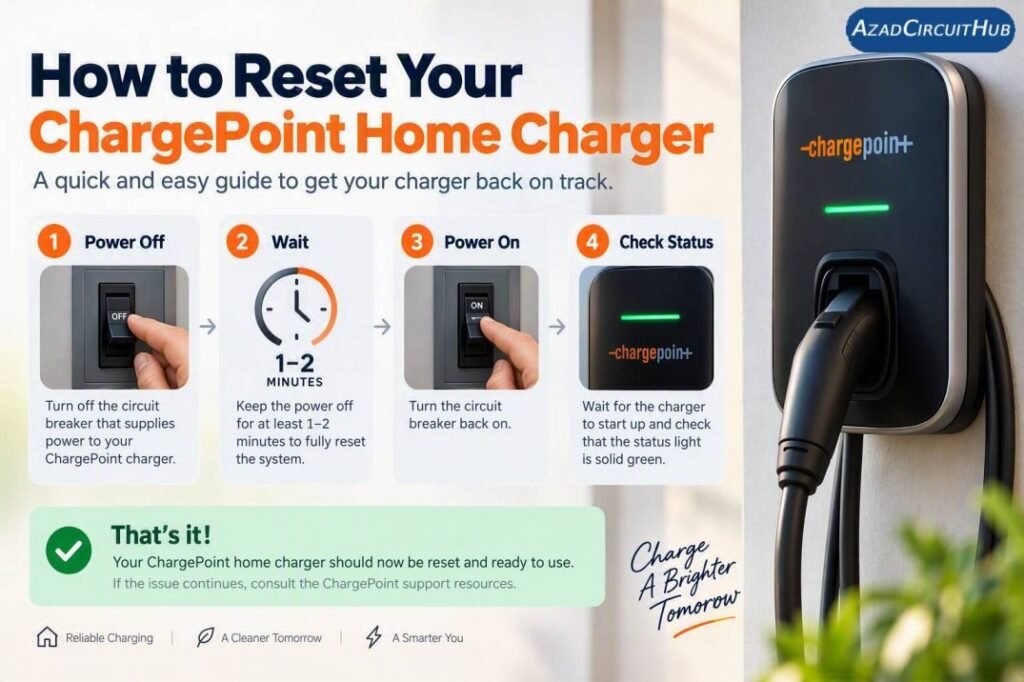
Table of Contents
Table of Contents
How to Reset Your ChargePoint Home Charger
Before resetting the unit, make sure your vehicle is unplugged from the charging cable. If the charger is actively delivering power, stop the charging session first.
Method 1: Restart Through the ChargePoint App
If your charger is connected to the ChargePoint app, open the app and select your Home Charger. Depending on the model and current app interface, available controls may include options for restarting or managing the charging station.
Follow the on-screen instructions and allow the charger enough time to reconnect.
After the restart, check the station status in the app. If it shows that the charger is ready, plug the vehicle back in and start a new charging session.
Method 2: Reset Power at the Circuit Breaker
A power cycle is useful when the charger is frozen or does not respond to the app.
| Step | Action |
|---|---|
| 1 | Stop the charging session |
| 2 | Unplug the EV |
| 3 | Locate the dedicated charger breaker |
| 4 | Switch the breaker OFF |
| 5 | Wait about 1–2 minutes |
| 6 | Switch the breaker ON |
| 7 | Wait for the charger to restart |
| 8 | Check the charger status |
| 9 | Reconnect the EV |
This method gives the charging station a complete power restart. Do not repeatedly cycle the breaker in quick succession.
If the breaker trips again immediately, leave it off and have the electrical installation checked by a qualified electrician.
When Should You Reset a ChargePoint Charger?
A reset may help when the charger appears powered but does not begin charging. It can also be useful after a temporary Wi-Fi connection problem or an unexpected software response.
Common symptoms include:
- Charging session will not start
- Charger appears offline in the app
- Status does not update correctly
- Charging stops unexpectedly
- Station becomes unresponsive
- Vehicle is connected but charging does not begin
- Charger status light behaves unexpectedly
If the station displays a red fault indication, do not assume that resetting it will solve the underlying problem.
For example, if you are troubleshooting an unexplained red status light, our guide on why is my ev charger blinking red explains common causes and what the different warning conditions can indicate.
Check These Things Before Resetting
A charger problem is not always caused by the charging station itself. Your EV, circuit, electrical supply, or connectivity can also be responsible.
| Check | What to look for |
|---|---|
| EV connection | Plug is fully inserted |
| Circuit breaker | Breaker has not tripped |
| Charging schedule | No delayed charging setting is active |
| Vehicle settings | EV is not blocking immediate charging |
| Wi-Fi | Charger has a stable connection |
| Cable | No visible damage |
| Status indicator | Normal operating condition |
The vehicle’s charging schedule is especially easy to overlook. Some EVs can be configured to delay charging until a specific time, making the charger appear faulty when it is actually waiting for the programmed schedule.
What If the Charger Still Does Not Work?
If a normal restart does not solve the issue, avoid repeatedly resetting the unit. Instead, identify whether the problem is related to power, communication, the EV, or the charger.
Try the vehicle on another compatible charging station if one is available. This can help determine whether the problem follows the car or stays with the ChargePoint station.
Also check the electrical panel. A dedicated EV charging circuit should be correctly sized and protected according to the applicable electrical requirements and the charger’s installation instructions.
If you are comparing charging equipment before replacing an existing unit, see our guide to best level 2 ev charger for a broader comparison of home charging options.
Reset vs Factory Reset
These two procedures should not be confused.
| Reset type | Configuration affected | Recommended use |
|---|---|---|
| Restart | Normally retains settings | First troubleshooting step |
| Power cycle | Restarts the complete unit | Unresponsive charger |
| Factory reset | May remove stored configuration | Persistent setup problems |
A factory reset should generally be treated as a last troubleshooting step. You may need to reconnect the charger to your account or configure network settings again afterward.
What Does a Red Light Mean After Resetting?
A red indicator generally means the charger has detected a fault or abnormal condition, but the exact meaning depends on the ChargePoint model and indicator pattern.
If the red indication returns immediately after a reset, record what the light is doing and check the model-specific troubleshooting information. Do not keep resetting a charger that repeatedly reports the same fault.
You can also review why is my ev charger blinking red if the indicator remains red after power has been restored.
Safety Tips When Resetting an EV Charger
Home EV chargers operate on high-voltage electrical circuits. A simple reset does not normally require opening the charger enclosure.
Follow these precautions:
- Do not remove the charger cover to troubleshoot an electrical fault.
- Do not touch exposed conductors.
- Stop charging before switching off the circuit.
- Never bypass a circuit breaker.
- Do not continue using a charger with damaged cables or connectors.
- Contact a qualified electrician if the breaker repeatedly trips.
A reset is intended to restart the equipment, not repair damaged electrical components.
For comparison, Tesla owners may encounter similar-looking warning behavior but the troubleshooting process is different. Our guide to why is my tesla charger blinking red covers those charger-specific warning conditions separately.
How to Avoid Repeated Charging Problems
Keeping the charger firmware, ChargePoint app, and EV software updated can help maintain reliable operation. A strong Wi-Fi connection may also be important for features that depend on cloud connectivity.
If you regularly experience charging interruptions, note the time, vehicle state, charger indicator, and app status when the problem occurs. This information can make troubleshooting much easier.
If you are considering a different home charging setup, compare installation requirements, amperage, cable length, connector type, and smart charging features before choosing a replacement. You can start with our guide to best level 2 ev charger.
Frequently Asked Questions
1. How do I reset my ChargePoint Home Charger?
To reset a ChargePoint Home Charger, first stop charging and unplug the vehicle. If the charger supports a restart through the ChargePoint app, use that option. If the unit is unresponsive, switching its dedicated circuit breaker off for about 1–2 minutes and then back on can provide a complete power cycle.
2. Why is my ChargePoint Home Charger not charging?
Possible causes include a tripped breaker, charging schedule, vehicle settings, connectivity problems, cable issues, or a charger fault. Check the EV, electrical panel, app status, and charger indicator before performing additional resets.
3. Will resetting my ChargePoint charger erase my settings?
A normal restart or power cycle should not normally erase the charger’s configuration. A factory reset is different and can require the charger to be configured again. Use the factory-reset procedure for your specific model rather than treating it like a normal restart.
4. Why is my ChargePoint charger showing a red light?
A red indicator can signal a fault or abnormal condition. The meaning depends on the particular ChargePoint model and indicator behavior. If the red condition returns after a power cycle, check the model-specific documentation and consider professional electrical or ChargePoint support.
5. Should I turn off the breaker to reset my EV charger?
A breaker power cycle can be useful when the charger is frozen or unresponsive. Turn off only the appropriate dedicated circuit, wait briefly, and restore power. If the breaker trips again, do not repeatedly reset it; have the circuit and charger inspected by a qualified electrician.
Final Takeaway
Learning How to Reset Your ChargePoint Home Charger can save time when a temporary software, communication, or power issue prevents normal charging. Start with a simple restart or controlled power cycle, then check the EV, breaker, charging schedule, and indicator status.
If the same fault returns after resetting, treat it as a troubleshooting issue rather than repeatedly cycling power. Persistent breaker trips, damaged equipment, or recurring fault indicators should be checked by a qualified professional.
Get new guides in your feed. Follow Electrical Insights on LinkedIn for new electrical standards guides, calculators and design tips from Azad Circuit Hub.
#HowToResetYourChargePointHomeCharger, #ChargePointHomeCharger, #ChargePointReset, #EVChargerReset, #HomeEVCharger, #ChargePointHomeFlex, #EVCharging, #Level2Charger, #EVChargerTroubleshooting, #ElectricVehicle
