ESP32 DevKit V1 Pinout: Pin Diagram, GPIO Functions, ADC, UART, I2C and SPI Pins
The ESP32 DevKit V1 pinout has 30 pins in two rows of 15, with 25 usable GPIOs, 3V3, VIN (5 V) and two GND pins. This guide gives you a clear pin diagram first, then every pin function in a table, the limits that cause most wiring problems (input-only pins, ADC2 and Wi-Fi, boot pins) and ready-to-use pin choices for I2C, SPI, UART, PWM, ADC and the onboard LED.
It covers the 30-pin DOIT-style ESP32 DevKit V1 built around the ESP32-WROOM-32 module. If your board has 38 pins, see the section on board versions below.
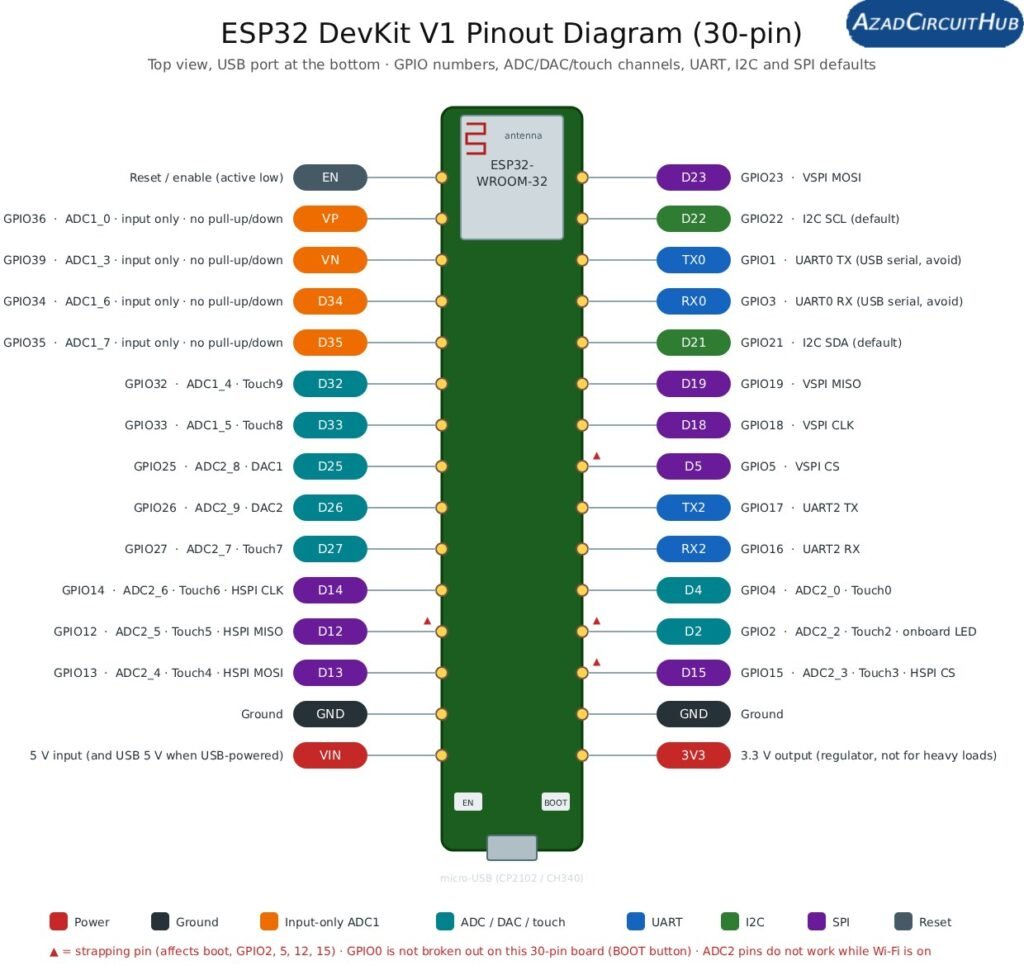
You can right-click and save the diagram to keep next to your breadboard.
Table of Contents
Table of Contents
ESP32 DevKit V1 Pinout Diagram Explained
Hold the board with the USB port at the bottom and the antenna at the top. The labels printed on the board are the silkscreen names, such as D23, D22, TX0, RX0, VP and VN. Most D numbers are the same as the GPIO number, so D23 is GPIO23.
The silkscreen labels that are not plain D numbers are:
- EN: reset and enable
- VP: GPIO36 (also called SENSOR_VP)
- VN: GPIO39 (also called SENSOR_VN)
- TX0 / RX0: GPIO1 and GPIO3, the UART0 pins used by USB serial
- TX2 / RX2: GPIO17 and GPIO16, the UART2 pins
- VIN: 5 V input
- 3V3: 3.3 V output
ESP32 DevKit V1 Pin Table (All 30 Pins)
The table lists both rows from the top (antenna end) to the bottom (USB end).
Left row, top to bottom
| Silkscreen | GPIO | Main functions | Notes |
|---|---|---|---|
| EN | none | Reset / enable | Pull low to reset the chip |
| VP | GPIO36 | ADC1_0 | Input only, no internal pull-up or pull-down |
| VN | GPIO39 | ADC1_3 | Input only, no internal pull-up or pull-down |
| D34 | GPIO34 | ADC1_6 | Input only, no internal pull-up or pull-down |
| D35 | GPIO35 | ADC1_7 | Input only, no internal pull-up or pull-down |
| D32 | GPIO32 | ADC1_4, Touch9 | Safe general-purpose pin |
| D33 | GPIO33 | ADC1_5, Touch8 | Safe general-purpose pin |
| D25 | GPIO25 | ADC2_8, DAC1 | Analog output; ADC2 is limited when Wi-Fi is on |
| D26 | GPIO26 | ADC2_9, DAC2 | Analog output; ADC2 is limited when Wi-Fi is on |
| D27 | GPIO27 | ADC2_7, Touch7 | Safe general-purpose pin |
| D14 | GPIO14 | ADC2_6, Touch6, HSPI CLK | Outputs a PWM signal at boot |
| D12 | GPIO12 | ADC2_5, Touch5, HSPI MISO | Strapping pin: must be low at boot on most boards |
| D13 | GPIO13 | ADC2_4, Touch4, HSPI MOSI | Safe general-purpose pin |
| GND | none | Ground | Common ground |
| VIN | none | 5 V input | Powers the board; also carries USB 5 V |
Right row, top to bottom
| Silkscreen | GPIO | Main functions | Notes |
|---|---|---|---|
| D23 | GPIO23 | VSPI MOSI | Default SPI data out |
| D22 | GPIO22 | I2C SCL | Default I2C clock |
| TX0 | GPIO1 | UART0 TX | Used by USB serial and boot log; avoid for other uses |
| RX0 | GPIO3 | UART0 RX | Used by USB serial; avoid for other uses |
| D21 | GPIO21 | I2C SDA | Default I2C data |
| D19 | GPIO19 | VSPI MISO | Default SPI data in |
| D18 | GPIO18 | VSPI CLK | Default SPI clock |
| D5 | GPIO5 | VSPI CS | Strapping pin; outputs a PWM signal at boot |
| TX2 | GPIO17 | UART2 TX | Free serial port for modules |
| RX2 | GPIO16 | UART2 RX | Free serial port for modules |
| D4 | GPIO4 | ADC2_0, Touch0 | Safe general-purpose pin |
| D2 | GPIO2 | ADC2_2, Touch2 | Onboard LED on most boards; strapping pin |
| D15 | GPIO15 | ADC2_3, Touch3, HSPI CS | Strapping pin; outputs a PWM signal at boot |
| GND | none | Ground | Common ground |
| 3V3 | none | 3.3 V output | From the onboard regulator |
That gives 25 GPIO pins on the headers. Of these, GPIO34, 35, 36 and 39 are input only, so 21 pins can be used as outputs.
Power Pins: 3V3, VIN and 5V
The board has no separate pin labelled 5V. The 5 V connection is VIN.
- VIN: When the board is powered over USB, VIN carries about 5 V and you can use it to power small 5 V modules. If you power the board from VIN instead of USB, supply a regulated 5 V. Do not feed higher voltages, because the onboard regulator will run hot.
- 3V3: The output of the onboard 3.3 V regulator. It powers sensors and small modules, but it also feeds the ESP32 itself, so do not load it heavily. Motors, servos and long LED strips need their own supply.
- GND: The board has two GND pins, one on each row, so you can ground both sides of a breadboard circuit. They are connected together.
If you power the ESP32 DevKit V1 and a 5 V device from the same supply, connect their grounds.
GPIO Voltage Levels and Current Limits
All ESP32 GPIO pins run at 3.3 V. A logic HIGH output is about 3.3 V and the inputs are not 5 V tolerant.
- Use a logic level shifter or a resistor divider when a 5 V device sends a signal to an ESP32 input.
- Keep the current from each GPIO pin low. As a rule, stay at or below about 20 mA per pin and check the ESP32 datasheet for the absolute maximum.
- Drive relays, motors and LED strips through a transistor, MOSFET or driver, not directly from a GPIO.
For exact values, see the Espressif ESP32 datasheet and use it as the reference for any design work.
ADC Pins on the ESP32 DevKit V1
The ESP32 has two analog-to-digital converters with 12-bit resolution (0 to 4095).
| ADC | GPIO pins on the DevKit V1 |
|---|---|
| ADC1 | GPIO32, 33, 34, 35, 36 (VP), 39 (VN) |
| ADC2 | GPIO2, 4, 12, 13, 14, 15, 25, 26, 27 (GPIO0 is not exposed) |
Important limits:
- Use ADC1 when Wi-Fi is on. ADC2 shares hardware with the Wi-Fi driver, and analogRead on ADC2 pins is not reliable while Wi-Fi is active. If your project uses Wi-Fi, read analog sensors on GPIO32, 33, 34, 35, 36 or 39.
- GPIO34, 35, 36 and 39 are input only. They are good for sensors, but they cannot drive an output and have no internal pull-up or pull-down.
- The input range is about 0 to 3.3 V. Do not connect a 5 V sensor output directly to an ADC pin.
- ADC readings are not perfectly linear. For accurate readings, use calibration or average several samples.
DAC Pins
GPIO25 (DAC1) and GPIO26 (DAC2) are the two 8-bit digital-to-analog outputs. They output 0 to about 3.3 V and are useful for simple audio and test signals.
PWM Pins on the ESP32 DevKit V1
Any output-capable GPIO can produce PWM through the LEDC peripheral, which has 16 independent channels. You are not tied to specific PWM pins.
So on the DevKit V1, all pins except the input-only GPIO34, 35, 36 and 39 can be used for PWM. Choose pins that avoid boot problems, such as GPIO4, 13, 16, 17, 18, 19, 21, 22, 23, 25, 26, 27, 32 and 33.
Touch Sensor Pins
The ESP32 has 10 capacitive touch inputs. On the DevKit V1 they are:
| Touch channel | GPIO |
|---|---|
| T0 | GPIO4 |
| T1 | GPIO0 (not exposed on the 30-pin board) |
| T2 | GPIO2 |
| T3 | GPIO15 |
| T4 | GPIO13 |
| T5 | GPIO12 |
| T6 | GPIO14 |
| T7 | GPIO27 |
| T8 | GPIO33 |
| T9 | GPIO32 |
I2C Pins on the ESP32 DevKit V1
The default I2C pins are:
- SDA: GPIO21
- SCL: GPIO22
The ESP32 can route I2C to almost any GPIO, so you can use other pins if needed. In Arduino code you can pick them with Wire.begin(SDA_pin, SCL_pin). Most I2C modules such as OLED displays, LCD backpacks and sensors connect to GPIO21 and GPIO22 with 3.3 V power.
SPI Pins on the ESP32 DevKit V1
The board has two usable SPI buses:
| Bus | MOSI | MISO | CLK | CS |
|---|---|---|---|---|
| VSPI (default) | GPIO23 | GPIO19 | GPIO18 | GPIO5 |
| HSPI | GPIO13 | GPIO12 | GPIO14 | GPIO15 |
VSPI is the default in most Arduino libraries. For an SD card module on VSPI, connect CS to GPIO5, MOSI to GPIO23, MISO to GPIO19 and SCK to GPIO18, and power it from the correct voltage for your module.
UART Pins on the ESP32 DevKit V1
The ESP32 has three UARTs. On the DevKit V1:
| UART | TX | RX | Notes |
|---|---|---|---|
| UART0 | GPIO1 (TX0) | GPIO3 (RX0) | Connected to the USB serial chip; used for uploads and Serial Monitor |
| UART2 | GPIO17 (TX2) | GPIO16 (RX2) | Free for GPS, GSM, LoRa and other serial modules |
Use UART2 for external modules so that USB uploads and debugging keep working. In Arduino code, start it with Serial2.begin(9600, SERIAL_8N1, 16, 17). UART1 can be assigned to other free pins.
I2S Pins
The ESP32 has two I2S controllers (I2S0 and I2S1), and the signals can be routed to nearly any output-capable GPIO through the GPIO matrix. Choose free pins such as GPIO25, 26, 27 and 32 for audio projects, and keep the input-only pins for data input.
Onboard LED Pin
On most ESP32 DevKit V1 boards, the blue user LED is connected to GPIO2. A red LED shows power and is not controllable.
Some clone boards use a different pin or have no user LED, so if GPIO2 does not blink, check your board’s silkscreen or schematic. The LED_BUILTIN constant in the Arduino core is set for the selected board, and for many ESP32 boards it points to GPIO2.
Pins to Avoid and Boot Limitations
Some pins affect how the ESP32 starts. Follow these rules to avoid upload and boot problems.
- GPIO0: Selects boot mode. It is connected to the BOOT button and is not broken out on the 30-pin DevKit V1 header. Hold BOOT while uploading if your board needs it.
- GPIO2, GPIO5, GPIO12, GPIO15: These are strapping pins read at reset. GPIO12 must stay low at boot on most boards, because a high level can select the wrong flash voltage and stop the board from booting. Avoid attaching circuits that pull these pins to the wrong level at startup.
- GPIO1 and GPIO3: Used by USB serial. Using them for other signals interferes with uploads and the Serial Monitor.
- GPIO6 to GPIO11: Connected to the internal flash and not available on this board.
- GPIO34, 35, 36, 39: Input only, no pull-up or pull-down.
- GPIO14, GPIO5, GPIO15: Output a short PWM signal during boot, which can briefly trigger relays or other loads.
Good general-purpose choices are GPIO4, 13, 16, 17, 18, 19, 21, 22, 23, 25, 26, 27, 32 and 33.
Wiring Example: ESP32 DevKit V1 with a Relay Module
A relay module is one of the most common ESP32 projects. This example uses a single-channel relay module with a 3.3 V-compatible input.
| Relay module | ESP32 DevKit V1 |
|---|---|
| VCC | VIN (5 V) for 5 V modules, or 3V3 for 3.3 V modules |
| GND | GND |
| IN | GPIO26 |
Notes:
- Check whether your relay module is active-low (energises when IN is LOW) or active-high, and invert the code if needed.
- Use a module with an optocoupler or transistor driver, and a flyback diode on bare relays.
- Keep mains wiring separate and insulated, and have a qualified person handle any mains connection.
- Avoid GPIO12, 14, 5, 15 and 2 for relays, because the boot behaviour can briefly switch the relay.
const int RELAY_PIN = 26;

void setup() {
  pinMode(RELAY_PIN, OUTPUT);
  digitalWrite(RELAY_PIN, HIGH); // set to the idle state of your module
}

void loop() {
  digitalWrite(RELAY_PIN, LOW);  // relay on for an active-low module
  delay(2000);
  digitalWrite(RELAY_PIN, HIGH); // relay off
  delay(2000);
}
Quick Wiring Reference for Common Parts
| Part | Suggested ESP32 DevKit V1 pins |
|---|---|
| I2C OLED / LCD / sensors | SDA GPIO21, SCL GPIO22 |
| SPI display or SD card | MOSI GPIO23, MISO GPIO19, CLK GPIO18, CS GPIO5 |
| UART module (GPS, GSM, LoRa) | TX2 GPIO17, RX2 GPIO16 |
| Analog sensor (with Wi-Fi) | GPIO32, 33, 34, 35, 36 or 39 |
| Servo or LED PWM | GPIO13, 16, 17, 18, 19, 23, 25, 26, 27 |
| DHT22 or digital sensor | GPIO4, 13, 16, 17, 27, 32 or 33 |
| Push button (internal pull-up) | GPIO13, 16, 17, 27, 32 or 33 |
| Relay | GPIO26 or GPIO27 |
ESP32 DevKit V1 30-Pin vs 38-Pin and Other Boards
Several different boards are sold under the same “DevKit V1” name, and pin layouts differ.
| Board | Pins | Key differences |
|---|---|---|
| ESP32 DevKit V1 (DOIT style) | 30 | The layout in this guide; GPIO0 not exposed |
| ESP32 DevKit V1 / ESP32 Dev Board (38-pin clones) | 38 | More pins broken out, such as GND and extra GPIOs; check the silkscreen of your board |
| Espressif ESP32-DevKitC | 38 (some 30) | Different layout and labels; different official board |
| NodeMCU-32S | 38 | Similar to the 38-pin version; check the labels |
| ESP32-S3 DevKit boards | varies | A different chip, with different pins and USB; not covered here |
Always match the silkscreen on your own board against the pin diagram before wiring. If your board has USB-C or a different pin count, use its own diagram and use this page for the GPIO function details, which are the same for the ESP32 chip.
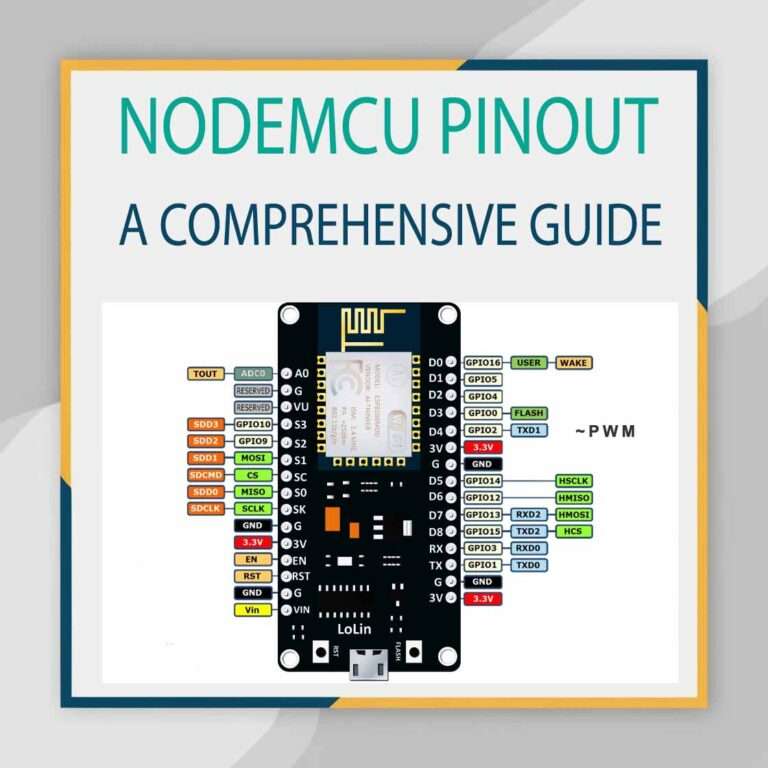
For the WROOM module and a broader pin reference, see the ESP32 WROOM pinout guide and the main ESP32 pinout guide.
Programming the ESP32 DevKit V1
You can program the ESP32 DevKit V1 with the Arduino IDE, PlatformIO or ESP-IDF.
- Install the Arduino IDE from the official Arduino website.
- Add ESP32 board support. In File → Preferences → Additional Boards Manager URLs, add the Espressif package index URL from the Espressif Arduino documentation. Then open Tools → Board → Boards Manager and install esp32 by Espressif Systems.
- Connect the board with a data-capable micro-USB cable and select the port in Tools → Port. If no port appears, install the CP2102 or CH340 USB driver that matches your board.
- Select the board. Choose DOIT ESP32 DEVKIT V1 or ESP32 Dev Module in Tools → Board.
- Upload the sketch. If the upload stalls at “Connecting…”, hold the BOOT button until it starts.
For PlatformIO, the board ID is esp32doit-devkit-v1.
Example: Blink the onboard LED on GPIO2
void setup() {
  pinMode(2, OUTPUT);
}

void loop() {
  digitalWrite(2, HIGH);
  delay(1000);
  digitalWrite(2, LOW);
  delay(1000);
}
This blinks the onboard LED every second and confirms that the board and upload process work.
Example: Read an analog sensor on GPIO34
void setup() {
  Serial.begin(115200);
}

void loop() {
  int value = analogRead(34); // ADC1, safe to use with Wi-Fi
  Serial.println(value);
  delay(500);
}
Know more about automatic power factor correction using Arduino for a larger Arduino-based project.
Common Tips for Using the ESP32 DevKit V1
- Never connect 5 V signals directly to GPIO pins. They are 3.3 V only.
- Use ADC1 pins (GPIO32 to 39) for analog input when Wi-Fi is on.
- Add pull-up or pull-down resistors on GPIO34, 35, 36 and 39, which have none.
- Keep strapping pins (GPIO2, 5, 12, 15) free of loads that force them to the wrong level at startup.
- Power high-current loads from a separate supply and share the ground.
- Use short jumper wires on breadboards to reduce noise.
- Check that your USB cable carries data, not only power.
ESP32 DevKit V1 Use Cases
- Home automation and smart switches
- IoT sensor nodes with Wi-Fi or Bluetooth
- Environmental monitoring with temperature, humidity and gas sensors
- Robotics projects with motors and servos through drivers
- Wearables and Bluetooth devices
Know more about the best WiFi modules for smart home projects (ESP8266, ESP32, ESP12F), and explore ESP-based smart home projects for beginners.
ESP32 DevKit V1 Pinout FAQ
How many GPIO pins does the ESP32 DevKit V1 have?
The 30-pin ESP32 DevKit V1 exposes 25 GPIO pins. Four of them (GPIO34, 35, 36 and 39) are input only, so 21 can be used as outputs.
Does the ESP32 DevKit V1 have a 5V pin?
There is no pin labelled 5V. The VIN pin is the 5 V connection. It carries about 5 V when the board is powered over USB, and it accepts a regulated 5 V supply when you power the board externally.
What are the I2C pins on the ESP32 DevKit V1?
The default I2C pins are GPIO21 (SDA) and GPIO22 (SCL). You can remap I2C to other free GPIOs in software.
What are the UART pins on the ESP32 DevKit V1?
UART0 uses GPIO1 (TX0) and GPIO3 (RX0) and is shared with USB serial. UART2 uses GPIO17 (TX2) and GPIO16 (RX2) and is free for external modules.
Which pins can I use for PWM?
Any output-capable GPIO can produce PWM through the LEDC peripheral, which has 16 channels. This excludes the input-only pins GPIO34, 35, 36 and 39.
Which ADC pins work with Wi-Fi?
The ADC1 pins: GPIO32, 33, 34, 35, 36 (VP) and 39 (VN). ADC2 pins are not reliable for analog reads while Wi-Fi is active.
Which pin is the onboard LED on the ESP32 DevKit V1?
On most boards it is GPIO2. Some clones differ, so check your board.
Where is GPIO0 on the ESP32 DevKit V1?
On the 30-pin board GPIO0 is not broken out to the header. It is connected to the BOOT button.
What voltage do the ESP32 DevKit V1 GPIO pins use?
3.3 V. The pins are not 5 V tolerant, so use a level shifter or divider for 5 V signals.
What is the difference between the 30-pin and 38-pin ESP32 DevKit V1?
The 38-pin versions break out more pins and use a different layout. The GPIO functions are the same for the ESP32 chip, but you must follow the silkscreen on your own board.
Conclusion
The ESP32 DevKit V1 pinout is flexible, but a few rules decide whether a project works: use ADC1 pins for analog input with Wi-Fi, treat GPIO34, 35, 36 and 39 as input only, keep strapping pins free at boot and leave GPIO1 and GPIO3 for USB serial. With the pin diagram above and the quick reference table, you can wire sensors, displays and relays with confidence.
Know more about the ESP12F pinout if you also work with ESP8266-based modules.
References
- Espressif ESP32 datasheet and technical reference manual (espressif.com)
- Arduino-ESP32 documentation (docs.espressif.com)
Technical note: pin labels and exposed GPIOs can differ between manufacturers. Confirm them against the silkscreen and documentation of your own board.
Get new guides in your feed. Follow Electrical Insights on LinkedIn for new electrical standards guides, calculators and design tips from Azad Circuit Hub.