Capacitive Touch Sensor Arduino Code: Important Steps to Build a No-Button Control in Minutes
Touch-based controls are now common in modern electronics, and you can create the same smooth user experience with a simple microcontroller setup. This guide explains how to use capacitive touch sensor arduino code to build a reliable, no-button interface that reacts instantly to your finger. The method is practical, low cost, and ideal for beginners who want a clean control panel without mechanical switches.
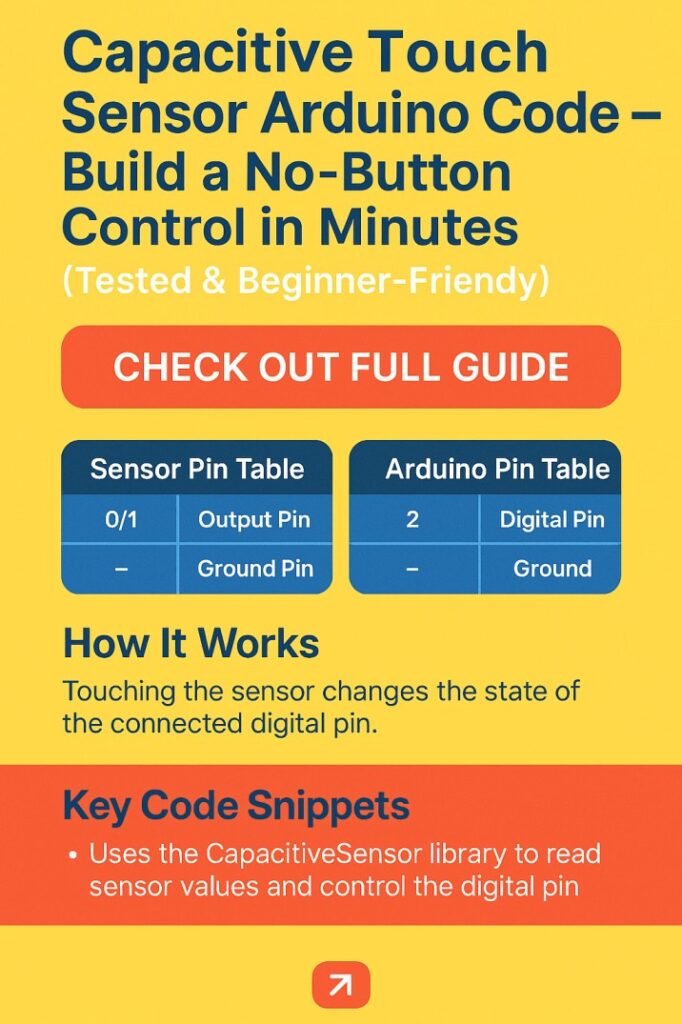
Table of Contents
A capacitive touch module detects changes in capacitance when a human finger comes close to its sensing pad. Unlike push buttons, there are no moving parts, so wear and contact issues are minimized. With the right wiring and stable code, you can trigger LEDs, relays, or any digital output within minutes.
What Is a Capacitive Touch Sensor and How It Works
A capacitive touch sensor measures the small electrical change created by the human body. When you touch the sensor surface, the capacitance increases. The onboard IC inside common modules such as the TTP223 converts that change into a digital HIGH or LOW signal that Arduino can read.
This approach provides smooth interaction and better durability than mechanical switches. It is widely used in smart panels, home automation boards, and control interfaces where silent operation is important.
Key benefits include fast response, long life, and simple wiring. Even a beginner can integrate capacitive touch sensor arduino code into a basic project without complex libraries.
Discover everything about servo motor arduino code
Components Required for the Project
Before writing the sketch, gather the following items. These are inexpensive and available in most electronics stores.
| Component | Quantity | Description |
|---|---|---|
| Arduino Uno or compatible board | 1 | Main controller that reads the sensor output |
| Capacitive Touch Sensor Module (TTP223) | 1 | Detects finger touch and outputs digital signal |
| LED | 1 | Used as a visual indicator |
| 220 Ohm Resistor | 1 | Protects the LED from excess current |
| Jumper Wires | As needed | For connections on breadboard |
| Breadboard | 1 | Quick prototyping platform |
These parts are enough to test the functionality. Later, you can replace the LED with a relay module, buzzer, or any load that suits your application.
Know more about Programmable Logic Controller vs Arduino
Pin Configuration and Wiring Connections
Correct wiring ensures stable readings. The typical TTP223 module has three pins labeled VCC, GND, and OUT. Connect them carefully to avoid floating signals.
| Sensor Pin | Arduino Connection | Purpose |
|---|---|---|
| VCC | 5V | Powers the touch module |
| GND | GND | Common ground reference |
| OUT | Digital Pin 2 | Sends touch signal to Arduino |
Now connect the LED anode through the 220 Ohm resistor to Digital Pin 13 and the cathode to GND. When the touch pad is pressed, the output goes HIGH and the LED will turn on.
Find all about esp8266mod
Keep wires short during testing to reduce electrical noise. Stable grounding helps the sensor respond consistently.
Capacitive Touch Sensor Arduino Code Example
The following capacitive touch sensor arduino code reads the sensor state and controls the LED output. It is simple, readable, and beginner friendly.
const int touchPin = 2;
const int ledPin = 13;
int touchState = 0;

void setup() {
  pinMode(touchPin, INPUT);
  pinMode(ledPin, OUTPUT);
  Serial.begin(9600);
}

void loop() {
  touchState = digitalRead(touchPin);

  if (touchState == HIGH) {
    digitalWrite(ledPin, HIGH);
    Serial.println("Touch Detected");
  } else {
    digitalWrite(ledPin, LOW);
  }

  delay(50);
}
Upload this sketch using the Arduino IDE. Open the Serial Monitor to confirm that the message appears when the sensor is touched. This quick feedback helps you verify that the connection and logic are correct.
Here is a detailed guide on esp12f pinout
Testing Procedure Capacitive Touch Sensor Arduino Code
After uploading the sketch, power the board using USB. Lightly place your finger on the sensor pad. The LED should switch on immediately. Remove your finger and it should turn off.
If the response seems delayed, check the USB power stability and ensure the module is not touching any conductive surface. Beginners often see better performance when the breadboard is placed on a wooden or plastic desk.
You can also increase the delay slightly if you want smoother switching. The current value is optimized for quick detection without false triggers.
Expanding the Project for Real Applications
Once the basic setup works, you can replace the LED with practical outputs. The same capacitive touch sensor arduino code structure can control other modules.
| Application | Required Output Device | Practical Use |
|---|---|---|
| Home Automation | Relay Module | Touch to switch lights or fans |
| Security Panel | Buzzer | Silent activation without buttons |
| Smart Desk Control | MOSFET Driver | Touch-based power control |
| DIY Appliance Panel | Multiple Sensors | Replace mechanical switches |
Adding more sensors is straightforward. Assign each sensor to a separate digital pin and create independent logic for each output.
Explore details on esp32 wroom 32 uart pins
Common Mistakes and Quick Fixes
New users sometimes experience unstable detection or continuous triggering. Most issues are related to wiring or grounding.
| Problem | Possible Cause | Solution |
|---|---|---|
| LED stays ON | Floating input | Confirm OUT pin is connected correctly |
| No response | Power issue | Check VCC and GND connections |
| Random triggering | Electrical noise | Shorten wires and improve grounding |
| Weak sensitivity | Sensor surface too small | Use a larger conductive pad |
Keeping connections neat and avoiding long jumper wires usually solves most problems. Know more about Best WiFi Modules for Smart Home Projects (ESP8266, ESP32, ESP12F)
Tips to Improve Sensitivity and Reliability
The touch module sensitivity can be affected by environment and layout. For better performance, mount the sensor behind a thin plastic panel. This allows hidden touch control without direct contact.
Avoid placing the module near high current lines or switching power supplies. Electrical interference can create false readings. If your design needs long cable runs, consider shielded wire or a local power filter.
You can also create a custom touch plate using copper tape connected to the sensor input pad. This increases the sensing area and provides a premium feel in finished projects.
Know more about automatic power factor correction using arduino
Using Serial Monitoring for Debugging
Serial output is a powerful tool during development. The included capacitive touch sensor arduino code prints a message when a touch is detected. This helps confirm whether the logic or the hardware is causing an issue.
If the Serial Monitor shows repeated messages without touching the pad, reduce environmental noise. Moving the setup away from metal surfaces often improves stability.
Debugging with serial data also helps when integrating multiple sensors. You can label each input and verify correct operation before connecting high power loads.
Why Capacitive Touch Is Better Than Mechanical Buttons
Mechanical switches wear out over time due to repeated pressing. Dust and moisture also affect contact resistance. Capacitive sensing removes these problems because there are no moving parts.
Touch control offers silent operation, longer service life, and a modern user interface. For control panels, this approach improves reliability and aesthetics. Using capacitive touch sensor arduino code also simplifies maintenance because replacement frequency is reduced. Know more about Top 10 ESP Based Smart Home Projects for Beginners
In educational projects, students learn about capacitance, digital logic, and signal conditioning in a practical way. The setup is safe, low voltage, and easy to modify.
Final Thoughts
Building a no-button interface with a touch module is one of the fastest ways to upgrade any Arduino project. With proper wiring and the tested capacitive touch sensor arduino code, you can create responsive controls in minutes. The design is durable, cost effective, and suitable for beginners as well as experienced makers.
Find all about nema 17 pinout
Start with the basic LED example, then expand into relay control, smart home panels, or multi-touch interfaces. As you refine the layout and improve grounding, the sensor becomes highly reliable even in daily use. This simple technique brings a professional feel to DIY electronics while keeping the circuit easy to understand and maintain. Explore all about arduino touch sensor
Follow Us on Social:
Subscribe our Newsletter on Electrical Insights for latest updates from Electrical Engineering Hub
#CapacitiveTouchSensor, #ArduinoCode, #ArduinoProjects, #TouchSensorArduino, #ElectronicsDIY, #ArduinoTutorial, #EmbeddedSystems, #MicrocontrollerProjects, #SensorInterfacing, #MakerProjects